Caps Lock
input switching,
without the wait
Your input source changes the moment you press Caps Lock, without the delay macOS puts on it. The key beside the space bar on a Windows layout keyboard becomes Command, too. To wipe the keyboard, lock its keys for a minute. Just choose from the menu bar. No permission requests, no network connection.

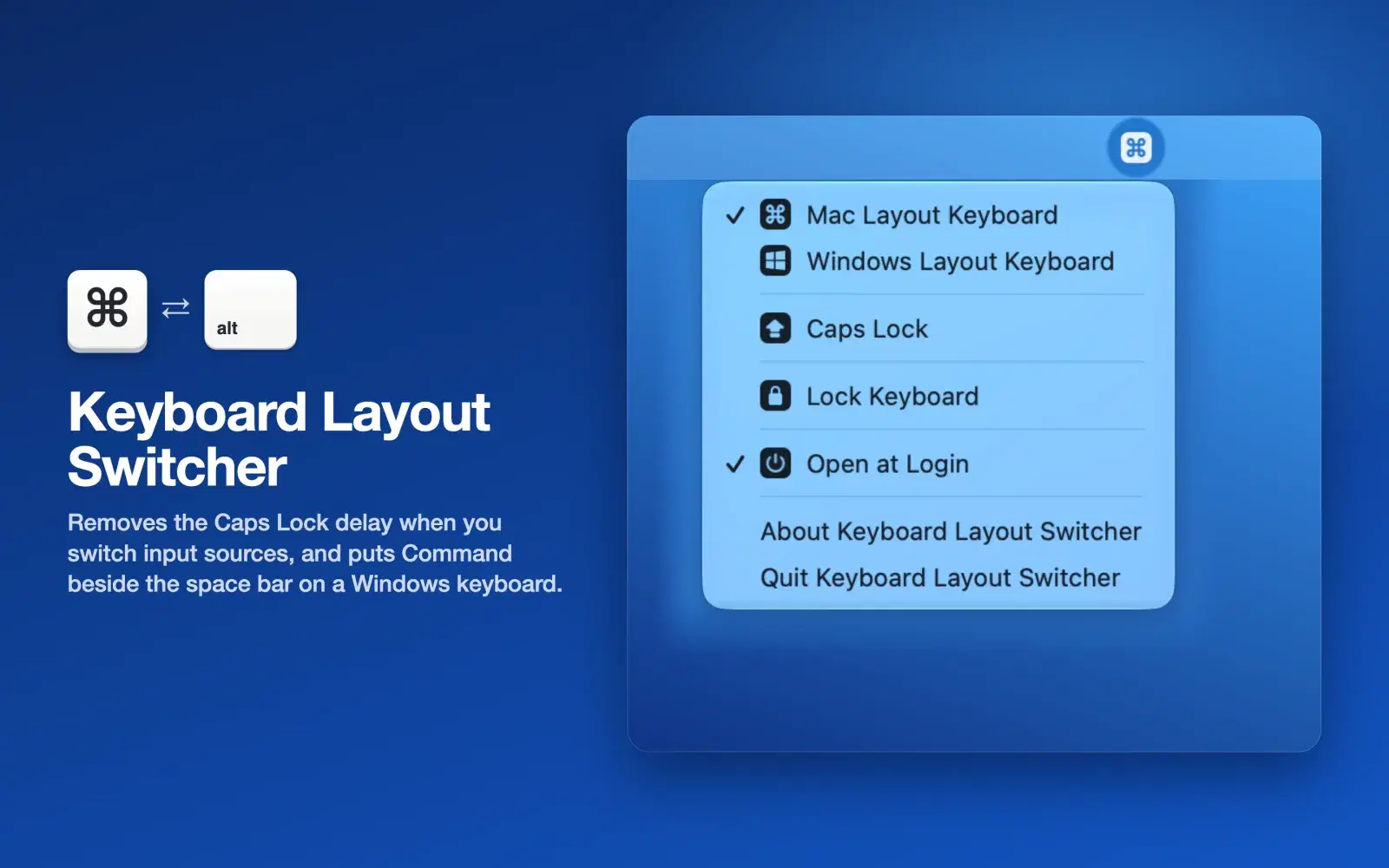
No more Caps Lock delay when switching input sources
When you switch input sources with Caps Lock, macOS waits a moment on every press to tell it apart from turning on capitals. Choose Mac Layout Keyboard and Caps Lock sends F18 instead, so an input source shortcut set to F18 works the moment you press it, with no wait.
The first time, you need to set the shortcut in System Settings > Keyboard > Keyboard Shortcuts… > Input Sources. The app tells you what to turn on and off, and opens the settings for you.
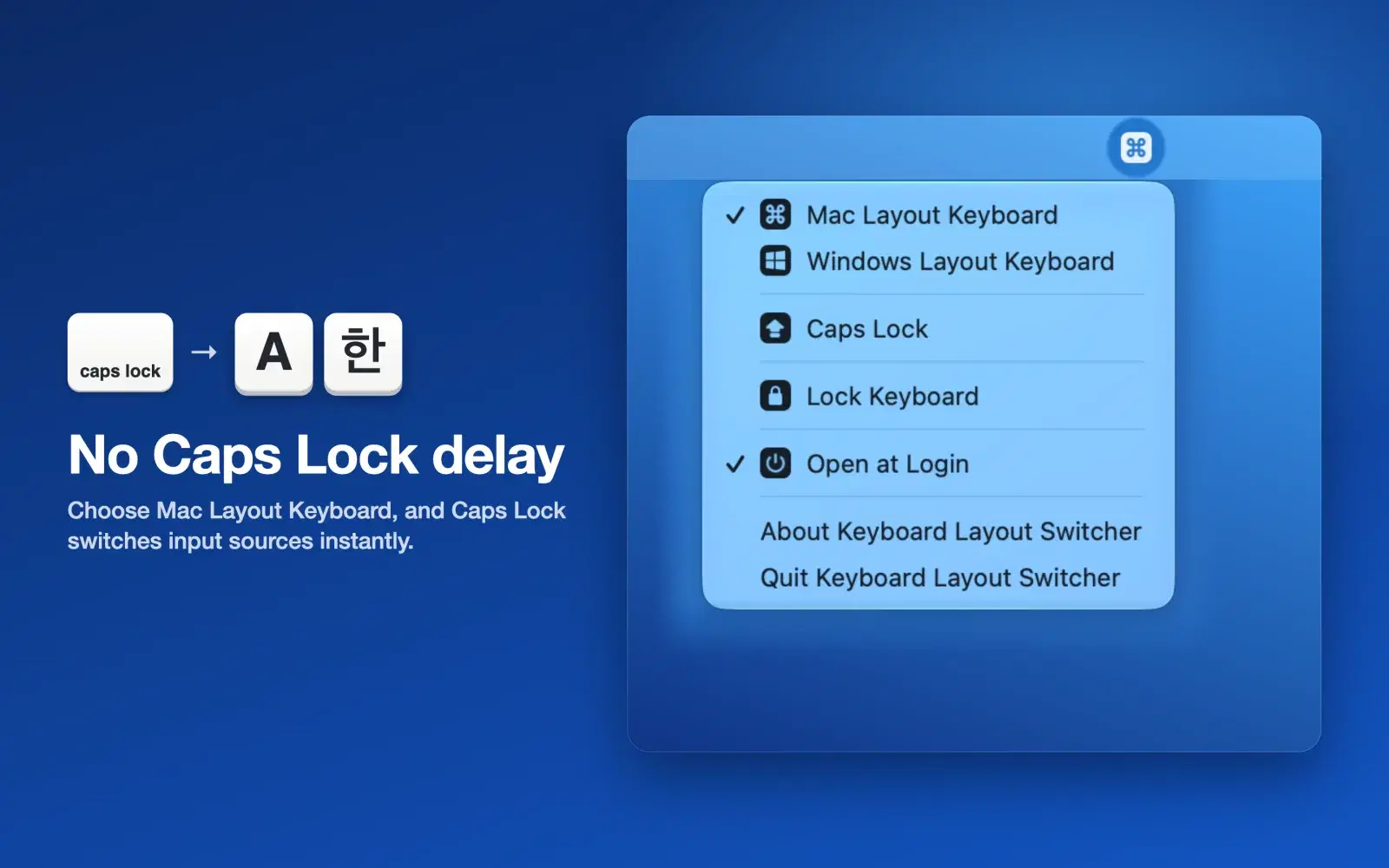
Command beside the space bar
The bottom left of a Windows keyboard reads ctrl, win, alt, so Option sits beside the space bar, where Command is on a Mac keyboard. Choose Windows Layout Keyboard to swap Option and Command on both sides, so the alt keys beside the space bar work as Command, right where your hands expect it. Caps Lock still switches input sources with no delay.
The menu bar icon shows which layout is in use. Choose the checked layout again to put every key back.
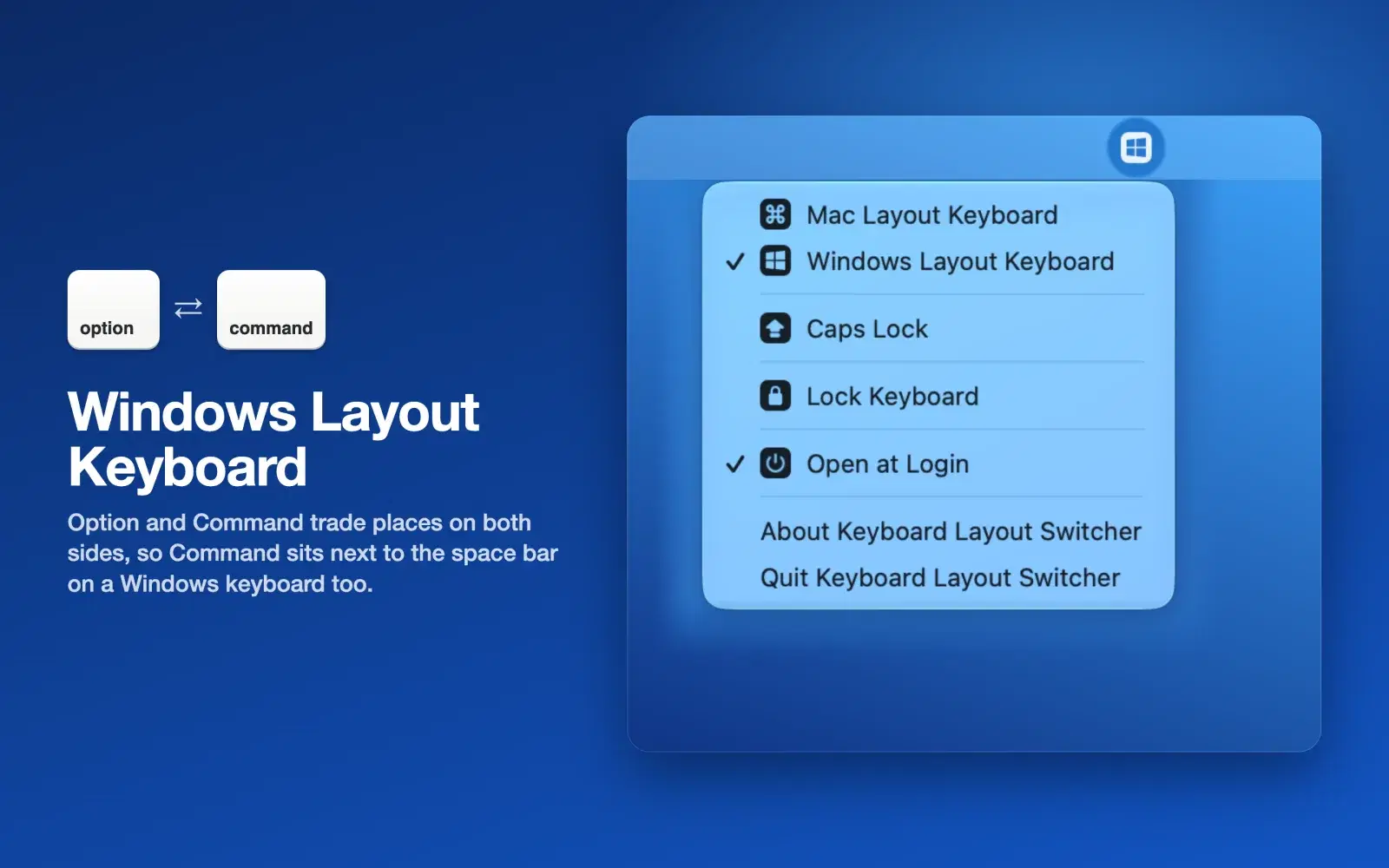
The new input source, in the menu bar
When the input source changes, the menu bar icon shows the new input source for a moment. Input methods such as Korean, Japanese and Chinese appear as their own icons, and keyboard layouts as language codes such as EN, DE and RU.
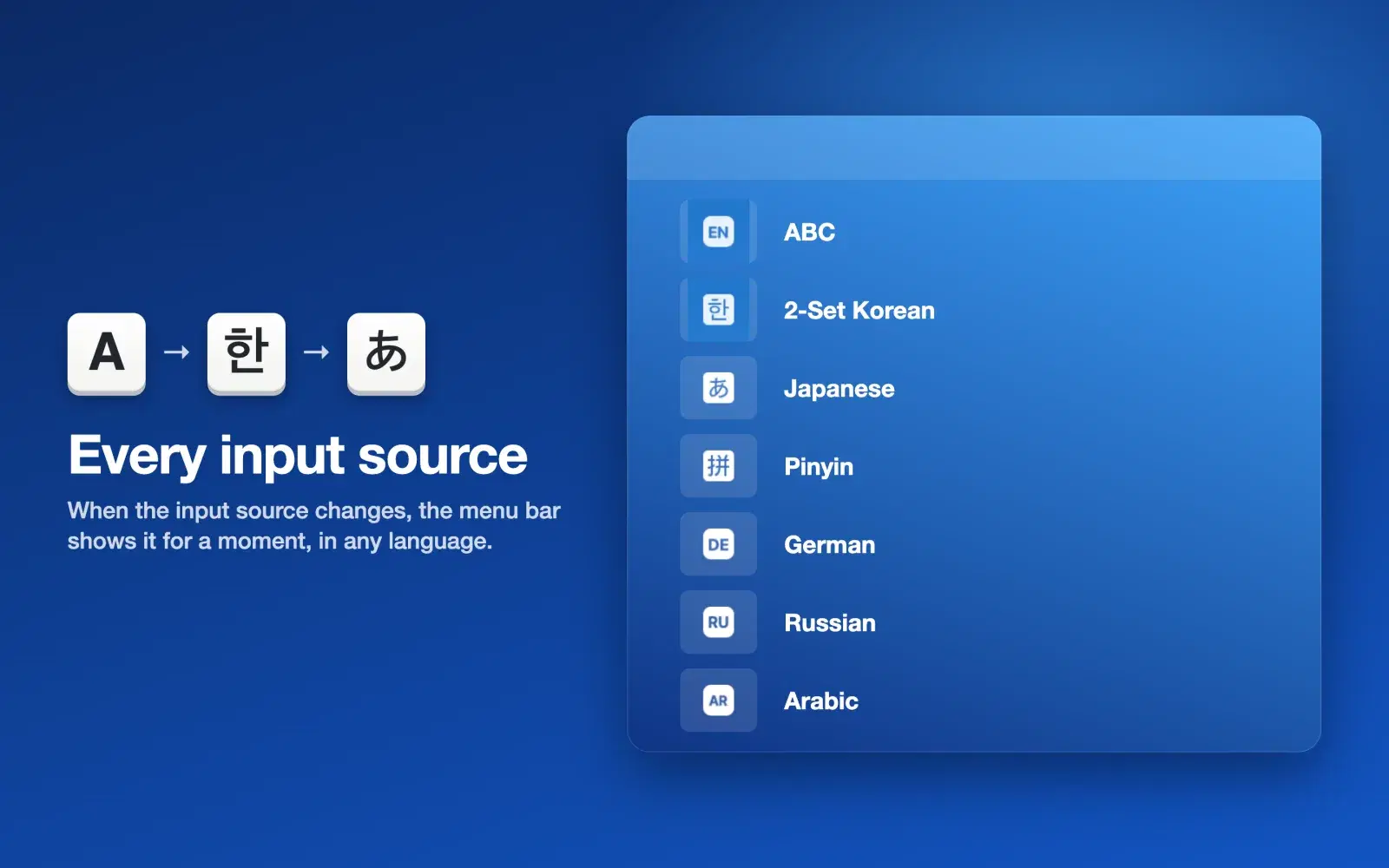
Capitals from the menu
Because Caps Lock is busy switching input sources, you turn capitals on and off with the Caps Lock item in the menu. While it is on, the menu bar shows the Caps Lock symbol.
The Caps Lock light on the keyboard comes on only when you press the key itself. When you turn on capitals from the app, check the menu bar instead.

Keys locked while you wipe
Choose Lock Keyboard and every key stops for a minute. Nothing gets typed, so you can wipe the keyboard as much as you like. The menu bar counts down the time left, and choosing it again unlocks the keys right away.
The mouse and trackpad keep working, so the menu is always within reach. The keys unlock on their own after a minute, and they come back even if you quit the app or restart your Mac.
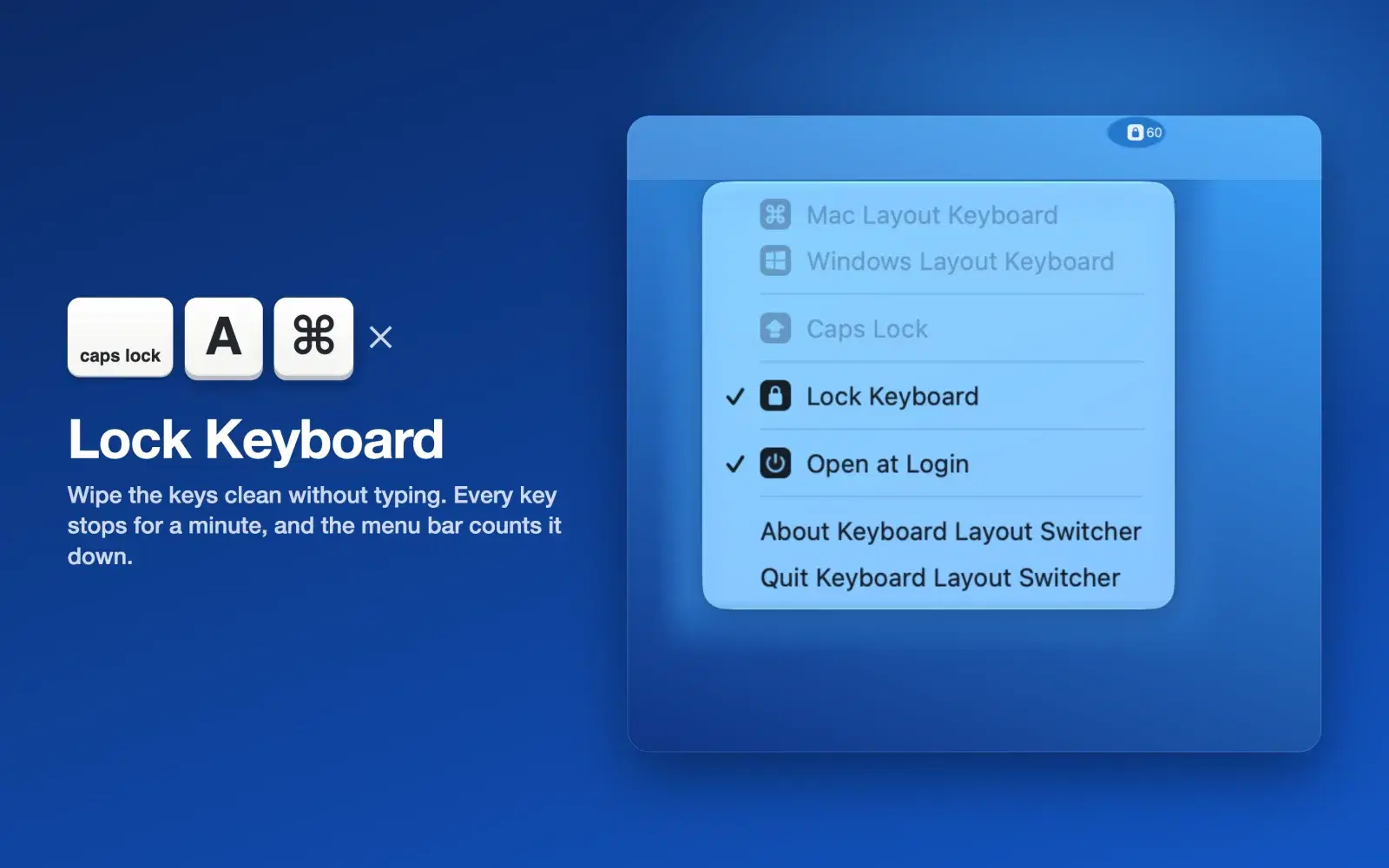
Keys that change with your menu choice
No other keys change. The one exception is the minute locked by Lock Keyboard, when every key stops. macOS clears the remapping when you restart, so turn on Open at Login in the menu and the app applies it again when you log in.
| Key | Keycap | Mac Layout | Windows Layout | Neither chosen |
|---|---|---|---|---|
| Caps Lock | caps lock | Switch input source (F18) | Switch input source (F18) | Caps Lock |
| Left Option (alt on a Windows keyboard) | alt⌥ | Option | Command | Option |
| Left Command (win on a Windows keyboard) | win⌘ | Command | Option | Command |
| Right Option (alt on a Windows keyboard) | alt⌥ | Option | Command | Option |
| Right Command (win on a Windows keyboard) | win⌘ | Command | Option | Command |
No permissions requested
The app touches only the macOS key remapping settings (the same settings hidutil changes) and the input source and Caps Lock state. It never reads what you type, does not request Accessibility, Input Monitoring or Screen Recording permission, and does not use the network.
Read the privacy policy