
Every window,
from the keyboard
Window Resizer arranges the windows on your desktop to fit your screen resolution and the size of the window you are using. A window buried behind the rest is one search away, and everything from finding it to arranging it happens on the keyboard. No account, no server: it works entirely on your Mac.

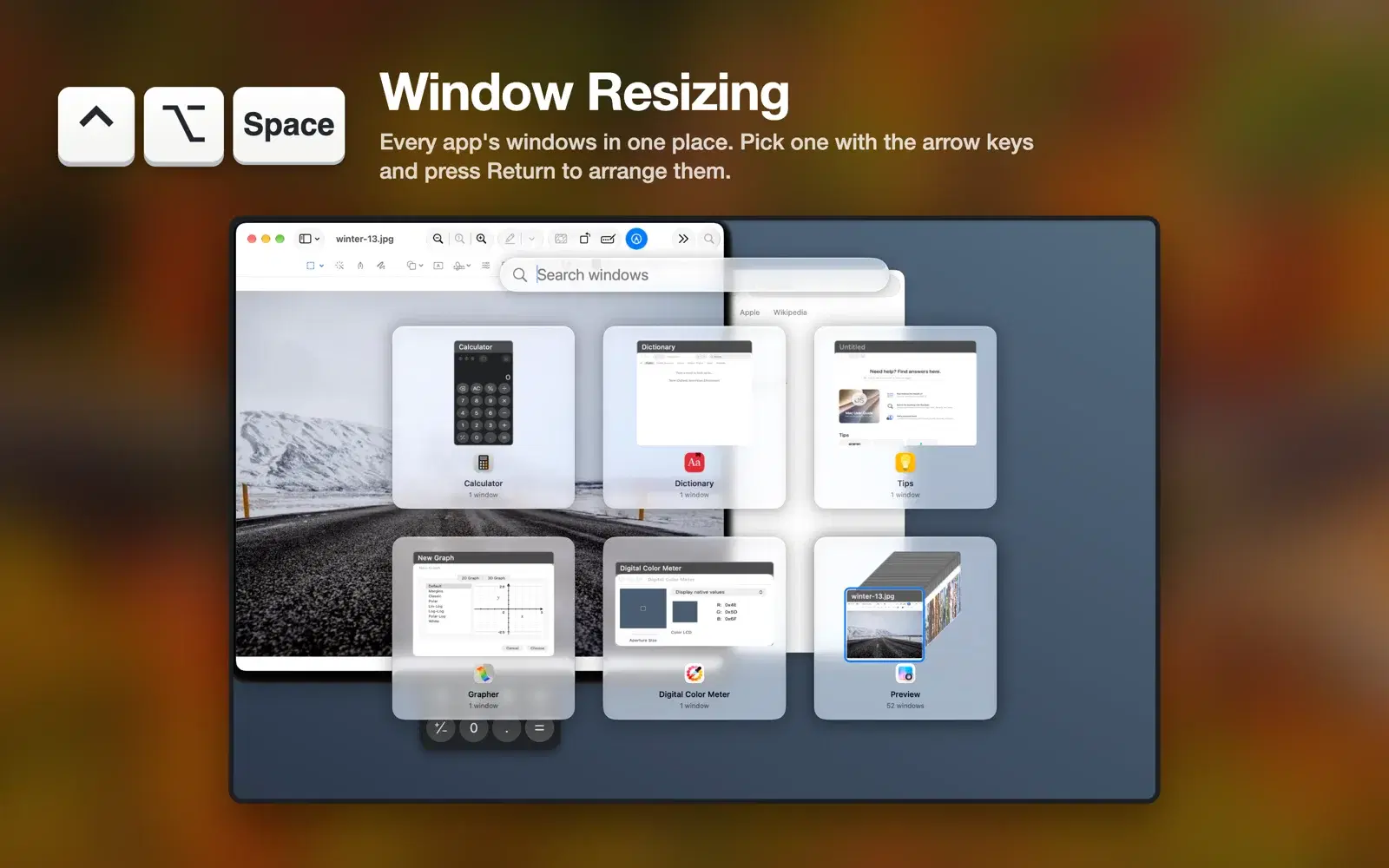
Search for the window you cannot find
Press ⌃⌥Space and the windows of every running app gather into stacks of cards, ready for you to type. Type a word from an app name or a window title and only the matching windows remain.
Pick a window with the arrow keys and press Enter: that app’s windows are arranged with the one you picked in front. From finding to arranging, no mouse needed.
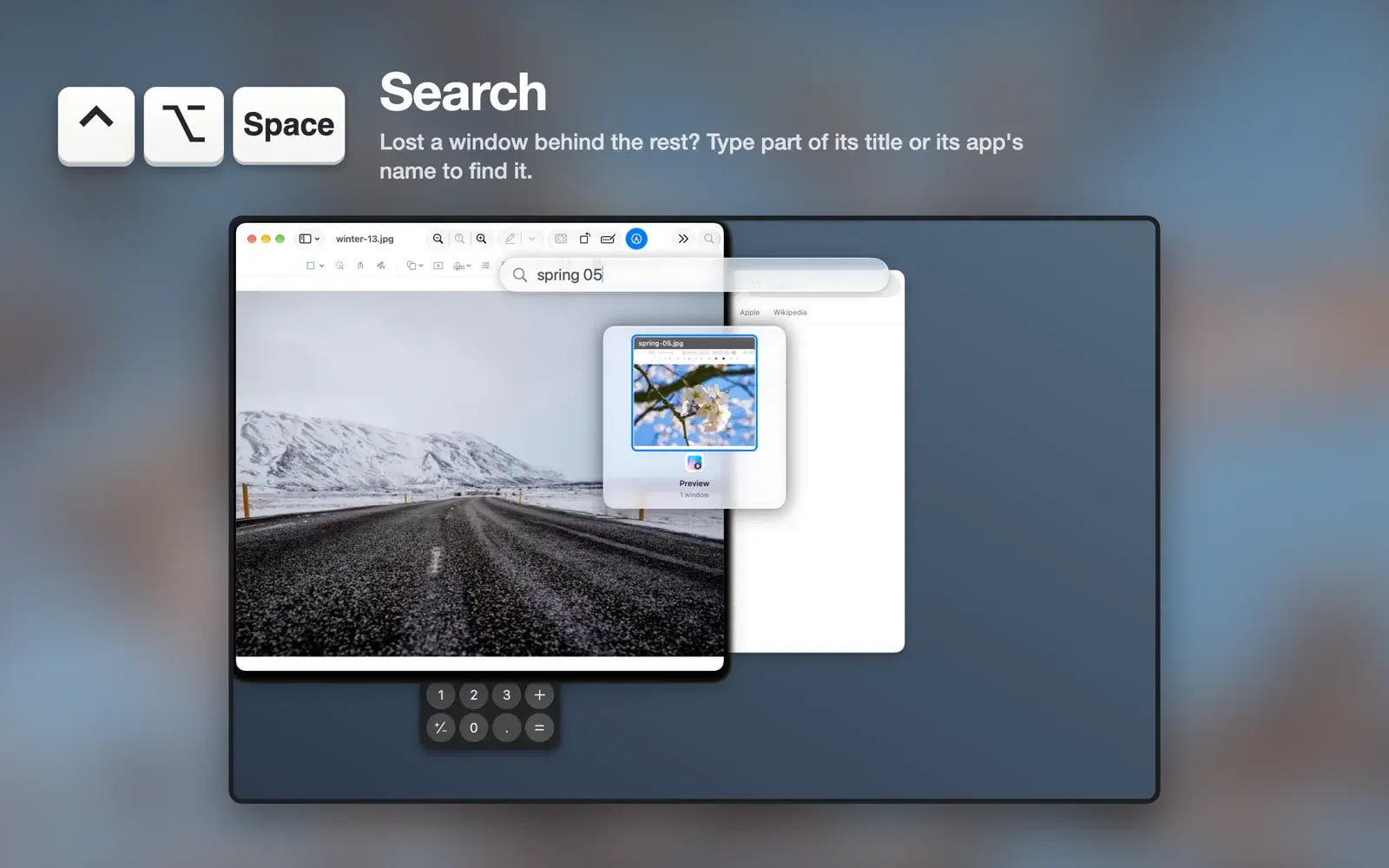
Cascades fitted to your screen and your window
⌃⌥← puts the selected window at the bottom left and ⌃⌥→ at the bottom right, then stacks the other windows above it with their title bars showing. Every window takes the size of the selected one.
The wider the display, the further apart the windows are spread, and when the cascade reaches the edge of the screen it turns back inside. No window ends up off screen.
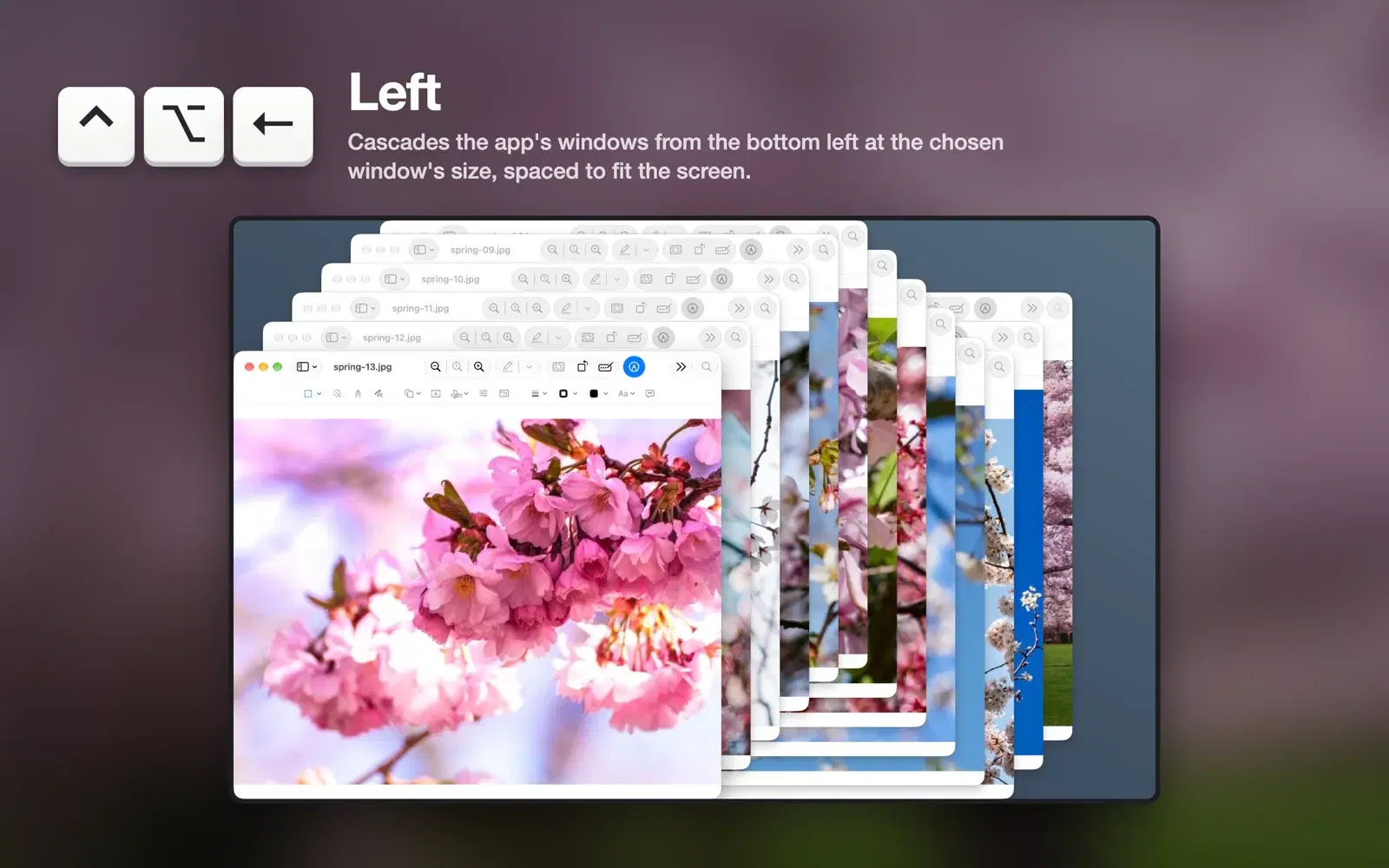
Stacked down the middle, alternating left and right
⌃⌥↑ and ⌃⌥↓ put the selected window at the top or bottom of the screen, centered horizontally, and stack the rest vertically, shifting them alternately left and right. A little of each window shows at the side, so any of them is easy to pick.
The front window, exactly where it belongs
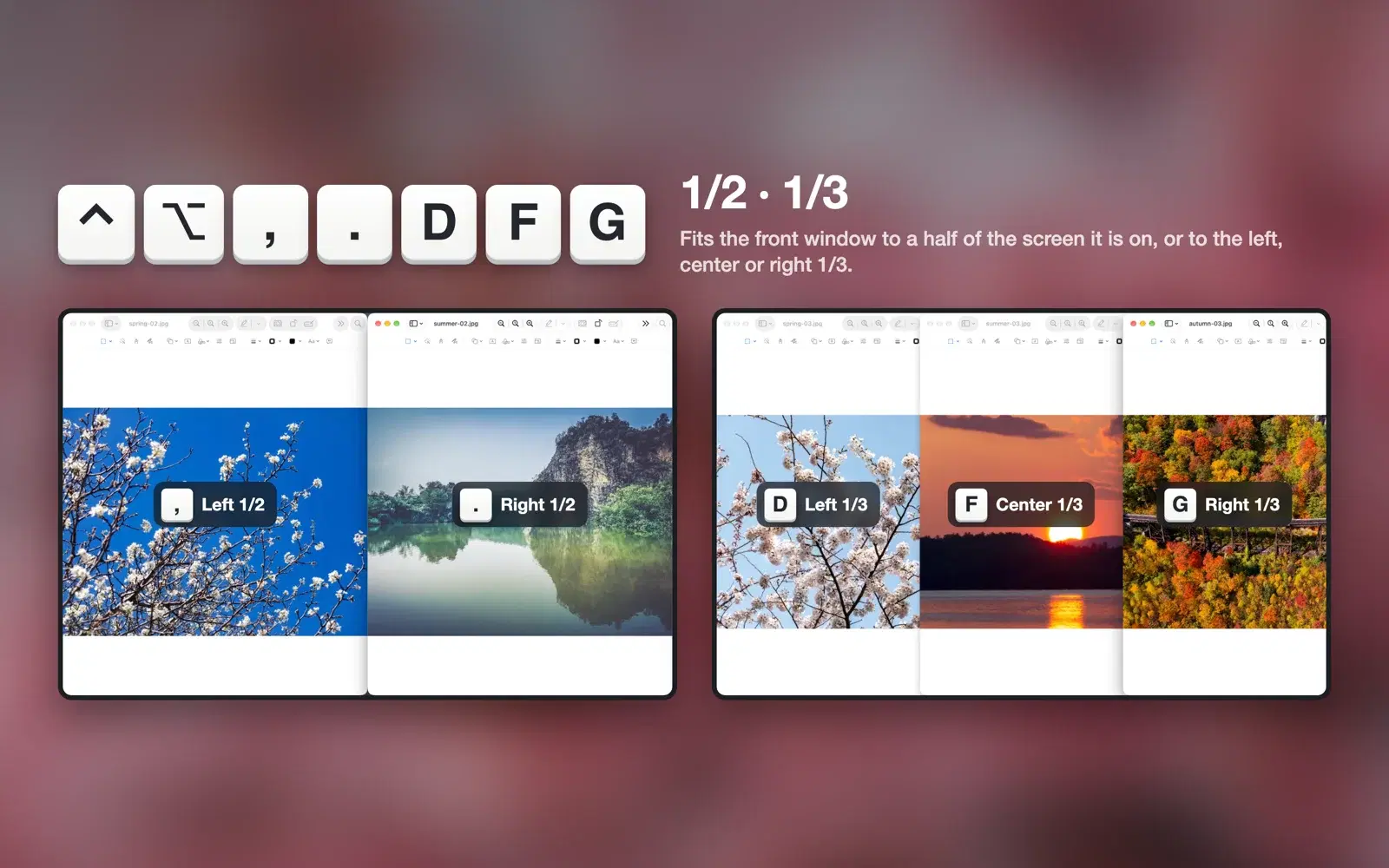
⌃⌥, and ⌃⌥. fit the window to the left or right half of the screen. ⌃⌥D, F, G fit it to a third, ⌃⌥E, R, T to two thirds, and ⌃⌥U, I, J, K to a quarter in each corner.
With the green button menu turned on, the same layouts are there when you hover over a window’s green button.
Fill the screen, then back to size in the center
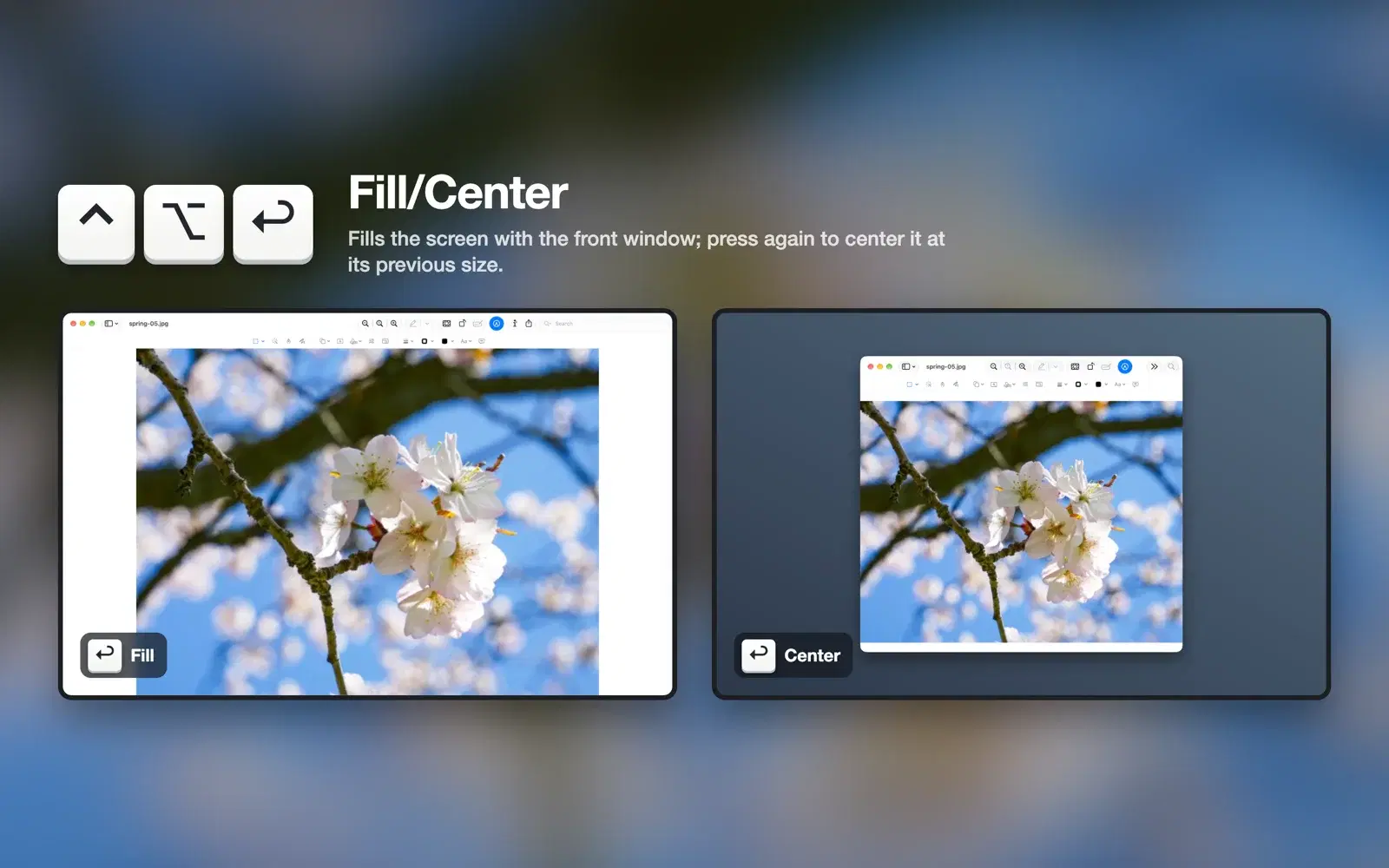
⌃⌥↩ fills the screen below the menu bar with the window. Press it again to put the window back at its previous size in the center of the screen.
18 default shortcuts
Change or turn off any of them in Settings (⌘,).
| Action | Shortcut | What it does |
|---|---|---|
| Window Resizing | ⌃⌥Space | Opens and closes the list of windows by app. Start typing right away to search |
| Left | ⌃⌥← | Cascade, selected window at the bottom left |
| Right | ⌃⌥→ | Cascade, selected window at the bottom right |
| Top | ⌃⌥↑ | Vertical cascade in the center, selected window on top, the rest alternating left and right |
| Bottom | ⌃⌥↓ | Vertical cascade in the center, selected window at the bottom, the rest alternating left and right |
| Top Left · Top Right | ⌃⌥UI | Top quarters of the screen |
| Bottom Left · Bottom Right | ⌃⌥JK | Bottom quarters of the screen |
| Left · Right 1/2 | ⌃⌥,. | Left or right half of the screen |
| Left · Center · Right 1/3 | ⌃⌥DFG | A third of the screen |
| Left · Center · Right 2/3 | ⌃⌥ERT | Two thirds of the screen |
| Fill/Center | ⌃⌥↩ | Fills the screen; press again to center it at its previous size |
Nothing leaves your Mac
Windows are moved by the “Window Resizer” shortcut in the Shortcuts app: add it when the app asks on first launch. Screen Recording is needed only for window previews and titles. What the app reads is used only to show it on screen, and is never saved or sent. The app does not use the network.
Read the privacy policy